Saving a Graphic Image From the Web
To save any image you find on the Web just do the following:
In Netscape, right-button click on the image and choose View Image, then right-button click again and choose Save Image As... to save the image to your floppy disk or hard drive in a properly named folder made for holding pictures.
In Internet Explorer, right-button click on the image and choose Save Picture As... to save the image. You will not be able to preview the image first in Internet Explorer, too bad; this little trick allows you to see just what you are saving. Sometimes you get more than you expect when saving and previewing would help.
Writing the Image Source Code
I have shown you in an earlier chapter how to write the code, but let’s assume that you’ve forgotten what it looks like, so I’ll run it by you again.
To insert an image into a Web page requires very little; the name of the image, whether or not it has a border, it’s size in terms of WIDTH and HEIGHT (please, in that order), and the description ALT tag. OK, so let’s assemble it now.
Start with the following, (it can be a fairly long tag):
< IMG SRC="... > Please note that most of the mistakes are made right here with a transposition of the two letters R and C be sure that you’ve written SRC
imagename.gif or jpg" This is where you put the name of the image you’ve chosen for the page. This part is case-sensitive; best bet is to use lower-case letters all the time when naming files for the Internet.
BORDER="n" If you want a border to surround the image, this is a good place to think about putting it. A border of 4 to 8 pixels could do the trick. Of course, eliminate this code if you don’t desire a border. For images that are HYPERTEXT you may wish to have the BORDER value set to zero (0).
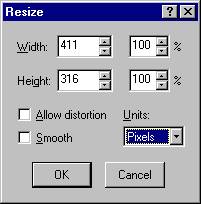
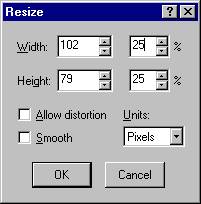
WIDTH="n" HEIGHT="n" A very important thing to add to your images, it will help the browser to load the image faster if it knows up front how large a space to reserve for the image. You can tweak the image’s size slightly with this portion of the code. However it is better to go to your Photo Editor and change the size there first. Some people like to have a very small image called a ‘Thumb-nail’ on the page and when the visitor wishes to see the image in a larger size, all they have to do is click on the image. I’ll show you how to do that later.
ALT="... place a short description of the image here ". This is so very important to some of our friends on the Internet. Braille readers can tell our visitors what your image is about with this tag. Also, Search Engine Tools sometimes collect images from the Net to catalogue, and they can only do that if you use the ALT tag.
Consider this if you will, let say you’ve used a beautiful picture of a lonely stretch of tropical beach; white sand, azure blue and green water, swaying palm trees, a couple of fallen coconuts and the most beautiful creature that ever walked the earth is basking in the sun. Got the picture in your head. This is what your unsighted friends will see when they come across your picture without the ALT tag. Image here. A short description could fix all that! Imagine if your image were a button that said “E-MAIL” or “NEXT PAGE”, they would never know because the ALT tag didn’t tell them.
Please consider using the ALT tag all the time on images. Both browsers will display your ALT text when the mouse is hovering over the image too.
On the next page we’ll learn how to change an image’s size.
Page 1 Page 2 Page 3 Page 4 TOP