Page 1 Page 2 Page 3 Page 4 Page 5
Headings as Text
Now that you’ve begun to build Web pages, you’ve probably noticed that you are lacking a bit in the knowledge of how to change the way the words are looking on your page. Well, it’s not hard to learn, and on these few pages I hope to fill you in on some of the basics and perhaps a couple of tricks too!
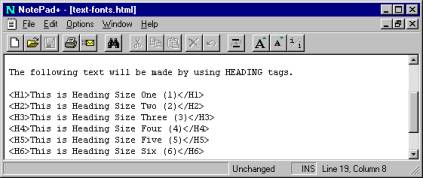
There are a couple of easy HTML tags to learn and you will be on your way shortly to building very interesting pages. Perhaps the easiest to learn is the two-sided Heading tags. These go from the largest, size one (1) to the smallest six (6). We have a really neat short cut and you used it in the first chapter. All you have to type is < H1 > and use the closing < /H1 > to stop the large size from taking over the whole page! You may expect these tags to work in any browser in the exact same way. Let’s take a look at what it would look like in a browser. I’ll demonstrate all six (6) in one screen-shot below.
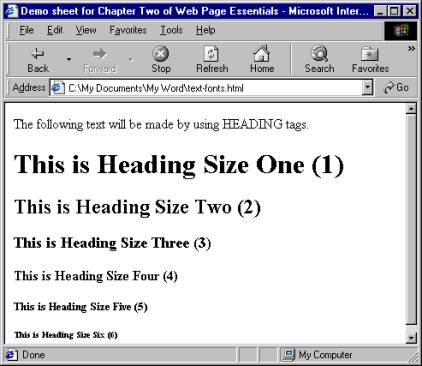
Notice a couple of things: First I have not typed any Paragraph < P > or Break < br /> tags to have the text appear on different lines. That’s because Heading tags have a built-in para-graph tag. Also take note of the extremely large spacing between each line. Heading tags have built-in extra spacing above and below. It’s about 12 points of space above and another 3 points below. This totals up to a whopping 15 points of space between each line of text. And, it’s the same amount whether you are using a size one (1) heading or a size six (6) heading. Truly, headings should be used for just those times you need headings. So it looks like you’ll have to learn some other type of tag next.
Page 1 Page 2 Page 3 Page 4 Page 5 TOP