Video Problems
Index
Video won't play or there is no sound or image
How to use the AC3 codec (for up to dolby 5.1 sound)
Reference: Video codecs
Problem: Video won't play or there is no sound or image
When a video file you have downloaded won't play or if you have no sound or image, you could try some of the following tips:
- Try opening the file with another player.
Problem with .avi file:
Try GDiVX player (http://www.divxity.com/) or The Playa (http://www.divx.com/products/ and select 'Video players')
Problem with .mpeg or .mpg file:
Try opening the file with dvd-software. Very large .mpg or .mpeg are in fact VCD (Video CD) or SVCD (Super Video CD) files. These files can only be opened by dvd-software. Try Intervideo WinDVD (http://www.intervideo.com).
Problem with other file:
Some files need RealPlayer (.rm and .ram) (http://www.realplayer.com) or QuickTime (.mov) (http://www.apple.com/quicktime/). - Try installing or reinstalling the latest version of the needed codecs.
Some older versions of the Divx codec are not compatible with Video files
that use another version of the codec.
Download the XviD codec. A lot of recent files use this open source codec instead of the Divx codec. You can download it here: http://www.divx-digest.com/software/xvid.html - A lot of the latest Video files use AC3 or Dolby Digital sound (the AC3 codec supports up
to 5.1 audio), you need an AC3 codec to play the sound.
The AC3 codec can be found in the Nimo codec pack, for more information go to our codec page.
Problem: How to use the AC3 codec (for up to dolby 5.1 sound)
You can use Microsoft Windows Media Player 6.0 (Media player 7.0 or 8.0 don't
support this) to configure the AC3 codec to use your 3.1 or 5.1 audio sytem.
Media Player 6.0 is included with Windows XP, you can find it here: 'C:\Program Files\Windows Media Player\mplayer2',
where 'C:\' is the disk where you have installed Windows. You can download
Media Player 6.4 here: http://www.microsoft.com/windows/windowsmedia/download/default.asp.
Open the video file with Media Player 6.0 and select 'File | Properties' and
select the 'Advanced' tab in the 'Properties' window.
You will see a list of all filters that are used to play the video. You
probably will see something called "Intervideo Audio Decoder" or
"AC3 Audio Decoder" in the list of used filters. Double click on
the name of the filter and a 'Properties for filter' window should appear.
This window looks something like this (screenshot taken on pc with a Dutch
language version of windows):
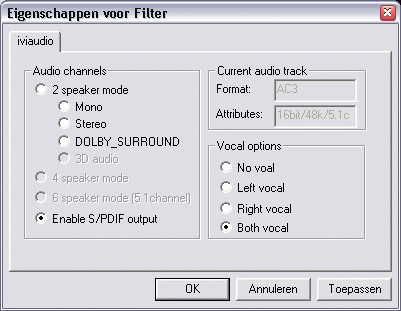
You can see in the 'Attributes' box that this video file has 5.1 channel
audio (5.1c). If you have a 5.1 channel audio system (5 speakers and a
subwoofer you can enable the 5.1 sound by selecting 'Enable S/PDIF' (S/PDIF or Sony/Philips Digital Interface).
Now you have to make sure that AC3 decoding is enabled in your sound card
software (read your sound card documentation) and you are ready to experience
Dolby Digital audio.
This page was last updated 2002-10-28 .
Copyright © 2000 - 2002 Star Trek Video. All Rights Reserved.
Star Trek Video
Home
>Index page
Episode downloads
>Enterprise
Finding episodes on the internet
>IRC
>Direct Connect
>FTP servers
>WinMX
>Tips
Trade episodes
>Trade episodes
Links
>Websites
>IRC channels
Software
>IRC
>Direct Connect
>FTP
Sound and video
>Codecs
>Problems and tips
Starting your own server
>IRC
>FTP
Website
>Contact us
>News archive
>About us