Starting your own IRC-server
Index
Who and why?
What do you need?
Setting up a Syris server
Starting the server
Reference: Finding episodes on IRC, IRC channels, IRC software, How to visit #startrekvideo
Who and why?
When you have a fast internet connection and a few interesting files, you can start your own IRC server. On a lot of IRC channels you will get special privileges when you start a server. Very often you'll get access to a server where you can download the latest files and you will get into the priority queue when you download something on another server on that channel.
What do you need?
Setting up your own IRC server is very easy, all you need is a fast and
stable internet connection and a modified version of Mirc. Mirc itself has
some built in server features but you can download adaptations of the basic Mirc
program with easy to use and more advanced server abilities.
Polaris:
http://www.polaris-central.com
Syris:
http://members.shaw.ca/abaldron/main.html
Invision: http://invision.lebyte.com
Setting up a Syris server
In this tutorial I will focus on how to configure a Fileserver with the Syris
script for Mirc.
Start Syris and select 'Syris IRC | Script Settings | General' and the 'General
Settings' window should appear.
Select 'Min/Max CPS' in the list on the left. You can now set a maximum
and minimum speed (CPS) for the download. When someone download speed
drops beneath the minimum speed, his download will stop, this will slow users
from taking up your send slots. When you set a maximum download speed, you
can save some bandwidth for yourself.
Now select 'Script Colors' in the list box on the left of the window. Here
you can choose the colors that will be used in the advertisement for your
server.
When you don't want people to leave the channel when they are downloading
something from your server, you can enable the 'DCC Watch'. Click on 'DCC
watch' on the left of the window and check the 'Enabled' box.
You can select the style of the advertisement by clicking on 'Script Style' in
the list box on the left and selecting 'New Age' or 'Original'.
Once you have set all the options click the 'Apply' button.
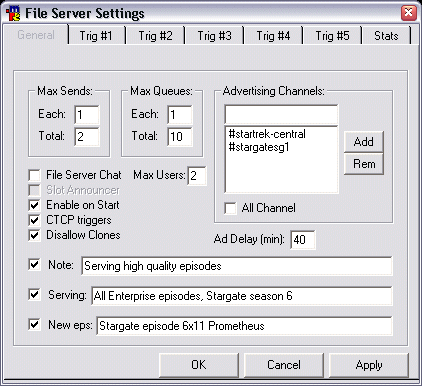
Select 'Syris IRC | Script Settings | File Server' and click on the 'General'
tab. All the settings are straightforward, the 'Note', 'Serving' and 'New
eps' texts will appear in the advertisement of your server.
Syris gives you the ability to run a server with up to five
trigger. Each trigger gives the user access to a directory and all
subdirectories of that directory on your computer. If you want to offer
episodes of more than one series you could use a different trigger for each
series.
You have to add at least on trigger and a root directory if you want to run a
server.
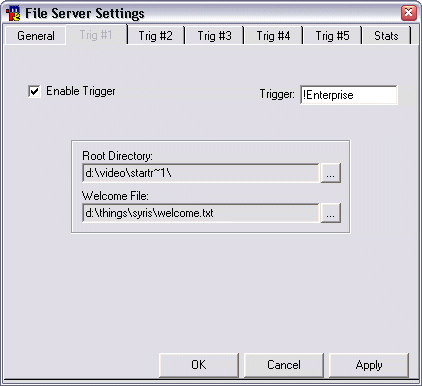
The welcome file is a text file with the welcome text that you would like to
appear when a user visits your server. You use this text to request a few
files or to give users additional information about your server.
With these settings, the advertisement for the server will look like this:
| [2:41pm] <startrekv> [Fserve] Trigger:[/ctcp startrekv !Enterprise] Sends:[0/2] Queues:[0/10] On server:[All Enterprise episodes, Stargate season 6] New today:[Stargate episode 6x11 Prometheus] Note:[Serving high quality episodes] ·•Syris 1.9.1•· |
Starting the server
When you have created a server with at least one trigger, you are ready to
start the server. To start the server, you have to connect to the IRC
network and join the channels were you would like the advertisement to appear.
You can select the channels were you want your advertisement to appear in the
'File Server Settings' window.
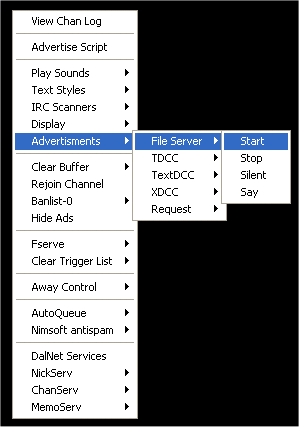
When you have checked the 'Enable on start' box, the server will automatically
start running when you join a channel. When you haven't checked that box,
you can manually star the server, by right clicking in a channel and selecting
'Advertisements | File server | Start'.
You can stop the server by selecting 'Stop' or show the advertisement by
selecting 'Say'. If you don't want that your advertisements appear, select
'Silent' in the menu.
The image below shows you how to start the advertisements for your File server.
This tutorial only shows you how to set up a basic server. Experiment a bit and discover the other functions of the Syris File Server.
This page was last updated 2003-02-17.
Copyright © 2000 - 2003 Star Trek Video. All Rights Reserved.
Star Trek Video
Home
>Index page
Episode downloads
>Enterprise
Finding episodes on the internet
>IRC
>Direct Connect
>FTP servers
>WinMX
>Tips
Trade episodes
>Trade episodes
Links
>Websites
>IRC channels
Software
>IRC
>Direct Connect
>FTP
Sound and video
>Codecs
>Problems and tips
Starting your own server
>IRC
>FTP
Website
>Contact us
>News archive
>About us