Quick IRC introduction
This is a small IRC tutorial, that learns you how to get on this #startrekvideo thing so you can get the latest Star Trek Enterprise episodes.
Setting up Mirc - Learn what program you need
to access #startrekvideo and how to use it
How to use the fileserver - Learn how
to use the filesever on #startrekvideo
Channel hours - See when the server is in the
channel
Problems - If you have problems connecting to EFnet.
Alternative connection method.
Setting up Mirc
#startrekvideo is an IRC channel, this is basically a chat box where you can
chat with other people and send files to each other. So when you want a
certain Star Trek Enterprise episode, just go to this chat box, tell us what
episode you want and we'll send it to you.
If you want to access the chat box, you need a little program called Mirc; you
can download it here: http://www.mirc.com.
- Download Mirc from http://www.mirc.com.
- Install the program.
- Start the Mirc program.
- When you start Mirc, a window should appear that looks like this:
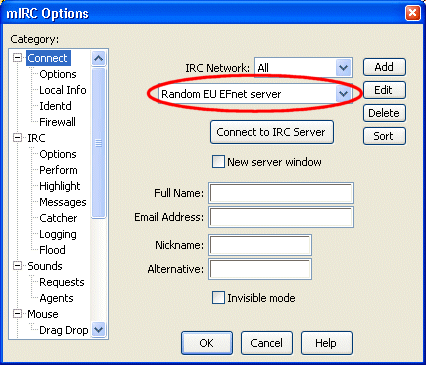
First of all, change the selected server to 'Random EU EFnet server' or 'Random US EFnet server'.
You see four text boxes where you can enter your name, an email address a nickname and an alternative nickname.
Enter your first name in the 'Full name' text box, enter an email address in the 'Email address' box, choose an original nickname and enter it in the 'Nickname' textbox. You don't have to enter an Alternative.
Don't change any of the other options yet. - Make sure that you are connected to the internet and press the 'Connect to IRC Server' button.
- If all goes well, the program should connect to an IRC server.
If the program is unable to connect to a server, don't panic. It often takes quite a few retries before the program can successfully connect to a server. If it takes a really long time to connect, try again in a few hours, the service is sometimes not available. - Once you are connected to a server click on 'commands' in the menu and select 'Join channel' and enter "#startrekvideo" without the " in the 'Enter channel name' textbox. Click on 'Ok'.
- If you have Mirc or another IRC program installed on your computer, you
can join the channel by clicking on one of these links:
irc://efnet.skynet.be/startrekvideo
irc://irc.he.net/startrekvideo - If all goes well you are now in our very own channel. Ask for the
episode that you want and we'll send it to you just like that.
If there's nobody in the channel, wait a few hours, try again tomorrow, try again at another time. - If you want to receive files from somebody you have to disable Mirc's 'DCC
Ignore' function. The Ignore function is set to ignore all files that
are sent to you to protect your computer from "nasty" files.
Star Trek episodes are of course not nasty so you have to disable the Ignore
function in order to receive them.
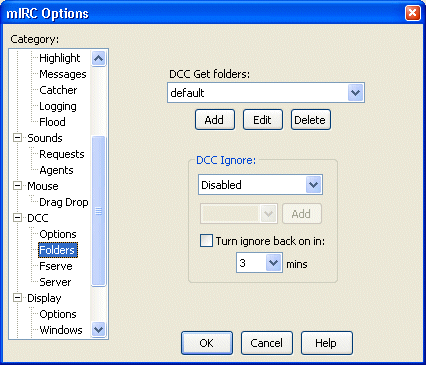
Select 'File | Options' from the menu and click on 'Folders' under 'DCC' in the 'mIRC Options' window. Now set 'DCC Ignore' to 'Disabled' and uncheck the 'Turn ignore back on in: x mins' checkbox.
Now you should be able to receive files.
How to use the fileserver
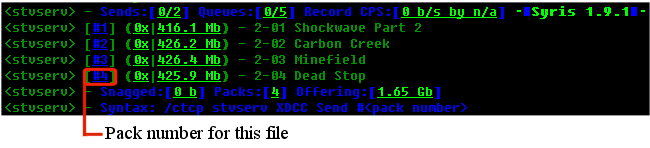
When the server is in the #startrekvideo channel, it will show an
advertisement that looks like the one in the image every 25 minutes. In this case the
server offers the first 4 Enterprise episodes. If you want episode '2-04
Dead Stop', you just have to type:
/ctcp stvserv XDCC Send #4
because
episode '4-04 Dead Stop' is pack #4.
So if you want to download pack #2, the episode
'Carbon Creek', just type:
/ctcp stvserv XDCC Send #2
Make sure that you have the 'DCC Ignore' function turned off (see above) when you request a
file.
When you were able to download a part of a file but you lost connection or
something happend to the server, don't panic, you haven't wasted a part of your
download limit. Just come back the next day and ask for the same
file. The server will resume the file where it stopped.
Channel hours
Channel hours: (all times are GMT, Berlin: GMT +1, New York: GMT -5)
Weekdays (except Friday): 11.59 pm to 7.00 am the next morning
Sunday: 11.59 pm to 7.00 am the next morning
Saturday and Friday: No server available yet.
Problems
- You can find a list of working EFnet servers on this website: http://www.efnet.org/servers/#
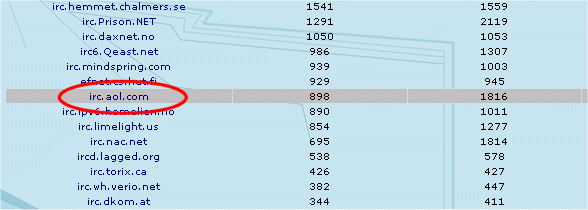
- Start Mirc and don't connect to a server.
- Let's say you want to connect to the AOL server but you can select any server in the list.Type '/server irc.aol.com' in the status window.
- If all goes well you should now be connected to a server, if there is a problem, try connecting to another server.
- Now type '/join #startrekvideo' to join our channel.
This page was last updated 2003-02-17.
Copyright © 2000 - 2003 Star Trek Video. All Rights Reserved.
Star Trek Video
Home
>Index page
Episode downloads
>Enterprise
Finding episodes on the internet
>IRC
>Direct Connect
>FTP servers
>WinMX
>Tips
Trade episodes
>Trade episodes
Links
>Websites
>IRC channels
Software
>IRC
>Direct Connect
>FTP
Sound and video
>Codecs
>Problems and tips
Starting your own server
>IRC
>FTP
Website
>Contact us
>News archive
>About us